
Thursday, September 25, 2008
Asking Forgiveness
I have been such a slacker these past couple of weeks. I became a foster parent a couple weeks ago, and life with a toddler is crazy. I had forgotten what it was like to have a little one around the house. He's such a handful. Needless to say, I haven't had any time to update this blog and provide you with goodies. As soon as I get on a schedule, I will be back. I promise. Until then, keep scrappping.
Friday, September 5, 2008
Friday Freebies
I as promised, you get two freebies today because I didn't have time for one last week. I hope you enjoy them.


Wednesday, September 3, 2008
Keeping Your Computer Safe – Part 3
This part of Keeping Your Computer Safe is fairly simple, sorry, no pictures. I really just want to stress the importance of having Virus Protection and Spyware Removal, and also give my opinions on certain software.
As far as Virus Protection goes I like McAfee the best. I have tried Norton, also known as Symantec, but I have found that the software takes up more disk space and causes the computer to run slower. McAfee has many products that will protect your computer and they are very reliable.
For Spyware Removal, I recommend Ad-Aware. It is a free download, but you can purchase the upgrade to Pro or Plus for real time protection. As long as you are diligent in scanning your computer on a regular basis, the free version will work just fine. I scan my computer at least once a week.
So, there you have it. There’s not much to Virus Protection or Spyware Removal. You just have to make sure that you have some sort of reliable software to protect your computer. There are many more companies out there that you can obtain software from; I’ve only had personal experiences with the one’s I’ve mentioned above. They have worked very well for me and have protected my computer for several years. Just remember, you need to protect your computer!!!
As far as Virus Protection goes I like McAfee the best. I have tried Norton, also known as Symantec, but I have found that the software takes up more disk space and causes the computer to run slower. McAfee has many products that will protect your computer and they are very reliable.
For Spyware Removal, I recommend Ad-Aware. It is a free download, but you can purchase the upgrade to Pro or Plus for real time protection. As long as you are diligent in scanning your computer on a regular basis, the free version will work just fine. I scan my computer at least once a week.
So, there you have it. There’s not much to Virus Protection or Spyware Removal. You just have to make sure that you have some sort of reliable software to protect your computer. There are many more companies out there that you can obtain software from; I’ve only had personal experiences with the one’s I’ve mentioned above. They have worked very well for me and have protected my computer for several years. Just remember, you need to protect your computer!!!
Tuesday, September 2, 2008
Tutorial Tuesday
Today's tutorial is on how to make scripts. This is a really fun tutorial, and you will get instructions on how to make a Porcelain script. Have fun!!!

Monday, September 1, 2008
Back It Up

It's the first of the month, so that means time to back up all your files. It would be disastrous if you lost any of your important pictures, layouts, downloads, etc. It may take some time and a few DVD disks, but it will be worth it.
BTW, sorry about no Friday Freebie last week. It was just one of those weeks. So, for this Friday, you'll get double the freebies.
Also, because the first of the month fell on a Monday, Keeping Your Computer Safe - Part 3 will be done on Wednesday.
Tuesday, August 26, 2008
Tutorial Tuesday
This week's tutorial is on how to make gel letters/text. To learn how to do this, download the PDF. Have a blast!!!

Monday, August 25, 2008
Keeping Your Computer Safe - Part 2
Last time we talked about keeping your computer safe with Firewalls. Today we will discuss Internet Options and Automatic Updates.
Let’s start with Automatic Updates. It is important to have Automatic Updates turned on. I’ll show you how it’s done. First, click on Start, then on Control Panel. Once there, click on Security Center. This is the screen that pops up.
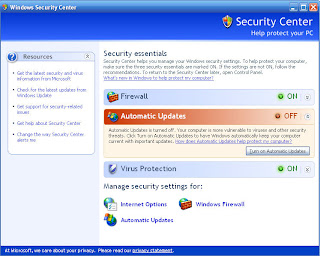
If your Automatic Updates are turned off, like in the picture above, just click on the Turn on Automatic Updates button to turn them on. Then, you want to check on your settings, so click on the Automatic Updates link on the bottom of the page. This screen will pop up.

Let’s start with Automatic Updates. It is important to have Automatic Updates turned on. I’ll show you how it’s done. First, click on Start, then on Control Panel. Once there, click on Security Center. This is the screen that pops up.

If your Automatic Updates are turned off, like in the picture above, just click on the Turn on Automatic Updates button to turn them on. Then, you want to check on your settings, so click on the Automatic Updates link on the bottom of the page. This screen will pop up.

You can choose for yourself which setting you would like it to be on. Personally, I like the Notify me but don’t automatically download or install them. That way it doesn’t slow my computer down when it automatically downloads and installs updates. I can choose when I want to download and install them.
Now, let’s talk about Internet Options. While still in your Security Center, click on the Internet Options link at the bottom. A screen like this will pop up.
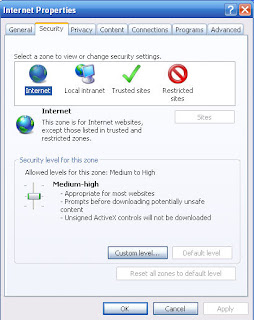
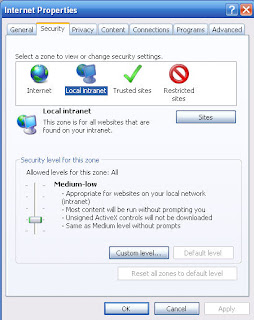
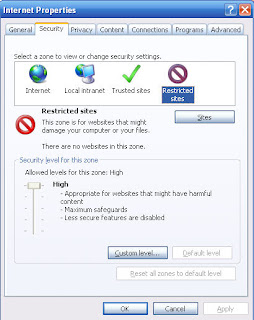
We’ll just be talking about the Security and Privacy tabs today. You want to adjust your security levels for each of the zones, Internet, Local Intranet, Trusted Sites, and Restricted Sites. The security level you set them at is up to you, but I will share with you what I like mine to be set at. So here, for the Internet, I like mine set on Medium-high. For Local Intranet, Medium-low:
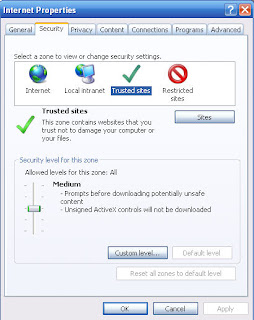
For Trusted sites, Medium:
And for Restricted Site, High:
Let’s move on to the Privacy tab. My preferred setting is at Medium with the Pop-Up Blocker turned on.

Now, let’s talk about Internet Options. While still in your Security Center, click on the Internet Options link at the bottom. A screen like this will pop up.

We’ll just be talking about the Security and Privacy tabs today. You want to adjust your security levels for each of the zones, Internet, Local Intranet, Trusted Sites, and Restricted Sites. The security level you set them at is up to you, but I will share with you what I like mine to be set at. So here, for the Internet, I like mine set on Medium-high. For Local Intranet, Medium-low:

For Trusted sites, Medium:

And for Restricted Site, High:

Let’s move on to the Privacy tab. My preferred setting is at Medium with the Pop-Up Blocker turned on.

This concludes this part in Keeping Your Computer Safe. Remember, it is up to you where you want to set your security levels at, I am merely making suggestions here. But, it is important to get to know these security measures on your computer. Also, remember to continually update your computer and software. This will keep your computer running smoothly and keep it protected.


 Posts
Posts


